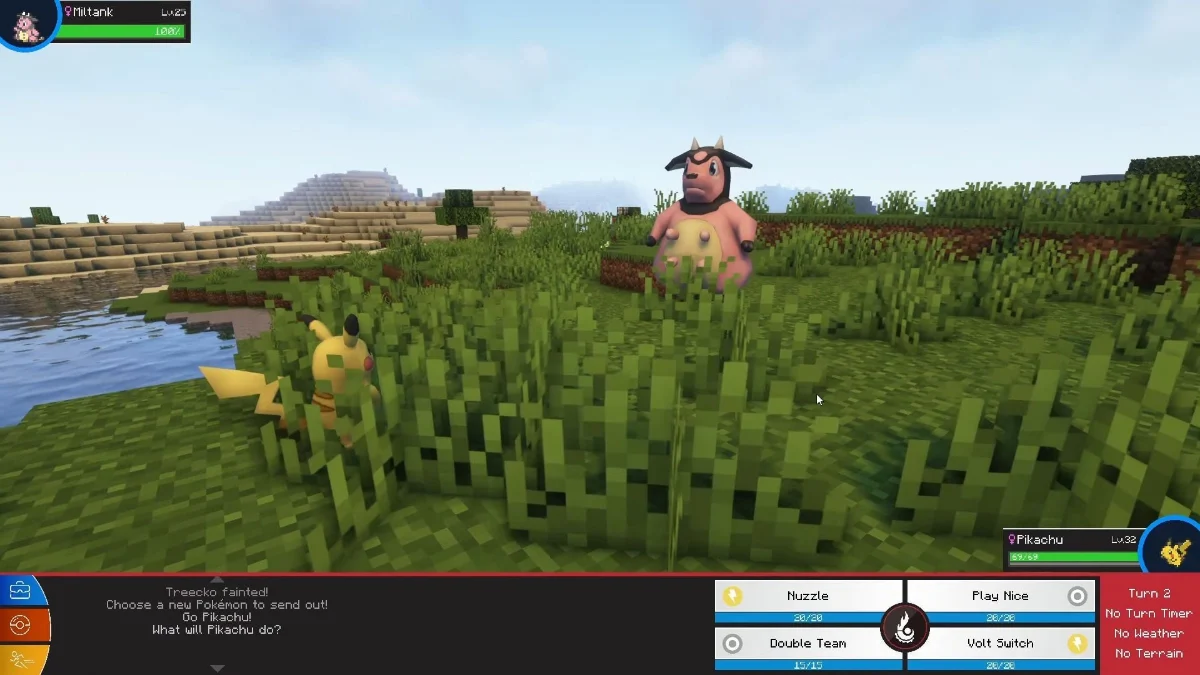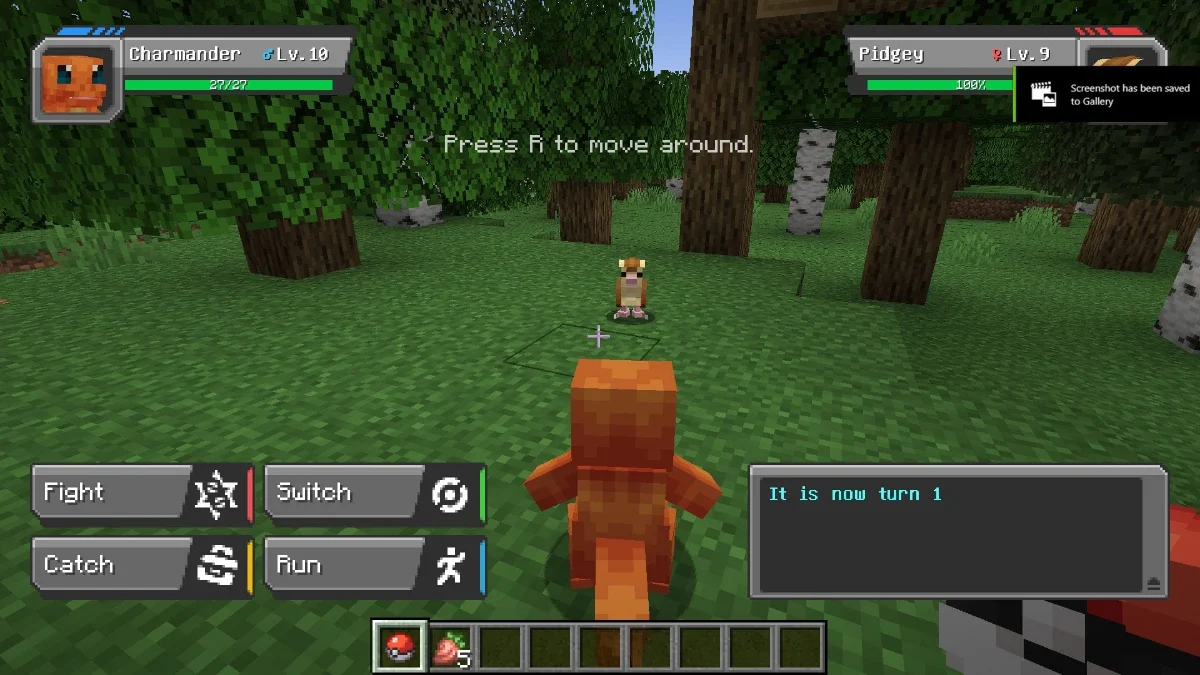
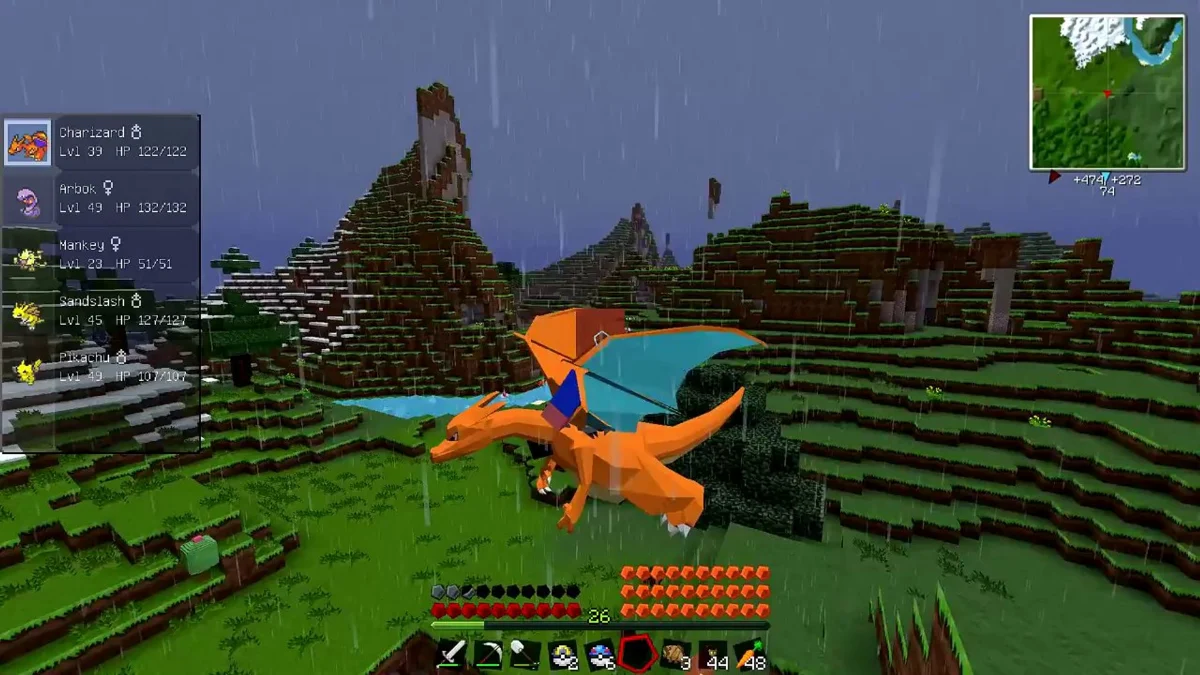
Legacy Java Pixelmon gameplay; launcher platform does not define the mod’s edition. Image: Dumb and Dumber gameplay series.
CurseForge is the best-known home for Pixelmon, but the mod is also published on Modrinth, the open mod platform many players prefer for its clean interface and fast downloads. This Pixelmon Modrinth guide explains how to find the official project, choose the right version and install it with the Modrinth App or a third-party launcher such as Prism.
Finding the official project
Search for Pixelmon on Modrinth and open the project published by the Pixelmon team. Check that:
- The project page links back to the official Reforged website.
- The version list shows regular releases with changelogs, not a single unexplained upload.
- The version pages list the Minecraft version and loader requirements — current builds target 1.21.1 with NeoForge and Java 21.
Some releases are tagged Beta. That is normal for Pixelmon's release process; the label reflects the team's release channel rather than an unofficial build.
Installing with the Modrinth App
- Install the Modrinth App and sign in if you want to sync profiles.
- Create a new instance. Choose Minecraft 1.21.1 (or whichever version your Pixelmon file targets) and select NeoForge. The app downloads the loader and the right Java automatically.
- Open the instance, go to Add content, search Pixelmon and click Install. The app filters results to versions that match your instance.
- In the instance settings, raise memory to 6 GB.
- Press Play and sign in with your Microsoft account if prompted.
Installing with Prism Launcher
- Create a new instance in Prism with the right Minecraft version and add NeoForge from the instance's Version tab.
- Open Mods → Download mods, switch the source to Modrinth and search Pixelmon.
- Select the matching version and confirm. Prism downloads it into the instance.
- Set memory in the instance's Settings → Java tab, then launch.
Manual download from Modrinth
You can also download the jar from the version page and drop it into the mods folder of any NeoForge install, exactly as you would with a CurseForge download. The file is the same mod; only the platform differs.
Modrinth or CurseForge — does it matter?
For the mod itself, no. Both host official Pixelmon builds. Choose whichever launcher you enjoy using. A few practical differences:
- The Modrinth App is lightweight and handles Java automatically.
- CurseForge has a larger catalogue of modpacks built around Pixelmon.
- Release timing can differ by a few hours between platforms after an update.
Building a Pixelmon modpack on Modrinth
If you want Pixelmon plus a handful of extras, create an instance, add Pixelmon first, launch once to confirm it works, then add other NeoForge mods one at a time. Modrinth shows compatible versions only, but it can't guarantee two mods behave well together, so test as you go.
Identify the publisher before choosing a version
Pixelmon appears in several kinds of Modrinth results. The core mod, a complete modpack and a community project built around Pixelmon are different downloads. Open the project page and identify its publisher, project type and links to the Pixelmon project. The result with the most familiar thumbnail is not automatically the file you intended to install.
The core mod supplies Pixelmon itself. A modpack may include the loader, configuration and additional mods as an organised instance. Community packs can make different choices about performance tools, progression and server settings. Read the contents before importing a pack so you know whether you are preparing a simple installation or accepting a larger collection of changes.
Use version filters as a starting point
Modrinth version filters help narrow a release list by game version and loader. Set those filters to match the profile you plan to launch. For the current download discussed on this website, the relevant combination is Minecraft 1.21.1 with NeoForge. If you are joining an existing server, use its requirements instead of choosing the first recent upload.
After filtering, open the release details and read the actual requirements and notes. A filter reduces the number of choices; it does not explain every compatibility condition. Check whether a file is a release, beta or another channel, and consider what that channel means for your world. Do not assume that all newer upload dates represent a drop-in replacement for an older server installation.
Keep downloaded mods inside the intended instance
An instance is the boundary around a particular Minecraft installation. It can have its own loader, runtime, mods, settings and saves. This separation is useful when you play more than one pack, but it also means that a manually downloaded Pixelmon JAR must be placed in the directory of the instance you actually launch.
Use the launcher’s folder-opening control rather than guessing from a system-wide Minecraft directory. Confirm the profile name and game version, close the running game and add the file once. Avoid storing both a previous and replacement Pixelmon JAR in the active mods folder. Keeping old downloads in a separate archive is fine; keeping duplicates in the running instance can cause a startup failure.
Let a simple test establish the baseline
Before adding a collection of extra mods, launch the Pixelmon instance by itself. Create a disposable world, confirm that creatures and the relevant interface appear, save and reopen the world. This establishes that the loader, runtime and Pixelmon file work together. It also gives you a specific configuration to return to if another addition causes problems.
When you add another mod, check its own Minecraft and loader requirements. Then test the feature you wanted and a few essential Pixelmon actions. A tool that improves one part of the game can still interact with another system. Launchers make downloading convenient, but a convenient install button does not replace a short compatibility check in the game.
Compare platforms without confusing the software
Modrinth and CurseForge are distribution platforms rather than separate editions of Pixelmon. What matters for compatibility is the actual release and its requirements. Two files with the same project name can still target different game versions, and a pack on one platform may contain extra components absent from a simple mod download on another.
When moving between launchers, record the exact Pixelmon version, Minecraft version, loader and required extra mods. Recreate that combination in a new instance and test it before moving saves. Do not assume that the new launcher can infer every server requirement from the presence of Pixelmon alone. A small written checklist prevents a platform change from becoming an accidental modpack update.
Review update selections before confirming them
An update screen may offer changes to several files at once. Read the selections and ask whether you are updating Pixelmon, a support mod, the loader or the entire pack. A coordinated pack update may be intended to change several components together, while an individual mod update may leave other parts of the installation untouched.
Back up the instance before confirming changes that affect an established world. Read the release notes for migration instructions or configuration changes. Test a copied world first, and keep the old instance until the new one has opened, saved and reloaded successfully. If you play on a server, wait for its required version to change rather than updating the client independently.
Share a reproducible setup with friends
A clear setup description should name the project, exact release, Minecraft version, loader and extra required mods. If you share a modpack, follow the platform’s export process rather than sending a folder containing account information or private launcher data. An exported pack describes the installation more cleanly than a screenshot of a long mods directory.
Also explain which settings are optional. A resource pack you enjoy may be unnecessary for joining the server, while a gameplay mod may be mandatory. Keeping that distinction clear helps friends reproduce the working profile without copying every personal preference. Test the shared instructions with a fresh instance where practical so that missing steps become visible before several people rely on them.
Know where a problem belongs
A failed file transfer, a launcher sign-in problem and a Pixelmon gameplay bug have different owners. Check the error message before deciding which support route to use. For a download issue, note the project and release. For startup, include the instance versions and relevant log. For a server connection, include the server’s required mod list and the full rejection message.
If the game opens but a Pixelmon mechanic behaves unexpectedly, reproduce it in a simple test environment before reporting it. A server’s configuration or another mod may explain the difference. This focused approach turns a vague statement that Modrinth does not work into a specific question that the relevant launcher, server or mod maintainer can investigate.
Keep a release record beside your backup
A useful release record can be short: note the Minecraft version, the Pixelmon filename, the loader version and the date you tested the instance. Add any required server mods and the source from which you obtained them. This record explains a backup more clearly than a folder named old game, particularly after several months of play.
When a friend reports a different result, compare the record before changing either installation. One person may have imported a complete pack while another installed only the core mod. They may also have selected different release channels or added optional components. Identifying that difference gives you a specific action, such as matching the required file, rather than an unfocused reinstall.
Keep private account data out of anything you share. Friends need the public project and version information to reproduce your setup; they do not need your launcher credentials or personal directories. Use the platform’s supported sharing or export tools where available, and describe any manual steps that remain. A clear installation record stays useful even if you later choose another launcher.
Pixelmon FAQs
Is Pixelmon officially on Modrinth?
Yes. The Pixelmon team publishes releases there alongside CurseForge.
Can I mix Modrinth and CurseForge downloads?
Yes. A jar is a jar — what matters is that every mod matches the instance's Minecraft and loader versions.
Why is the Pixelmon release marked Beta?
That is the release channel the team chose for the upload. Read the changelog to see what changed.
Conclusion
Pixelmon on Modrinth is the same mod with a different storefront. Use the Modrinth App for a hands-off install or Prism if you like fine control, match the versions, give it enough memory and you are ready to play.