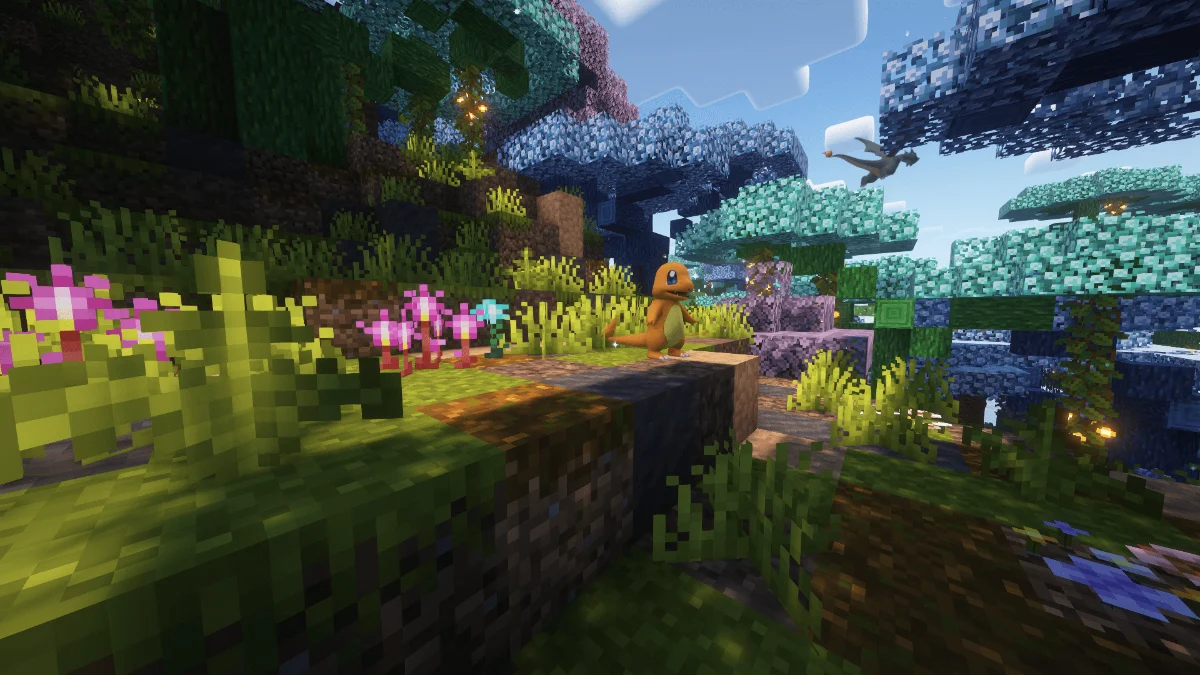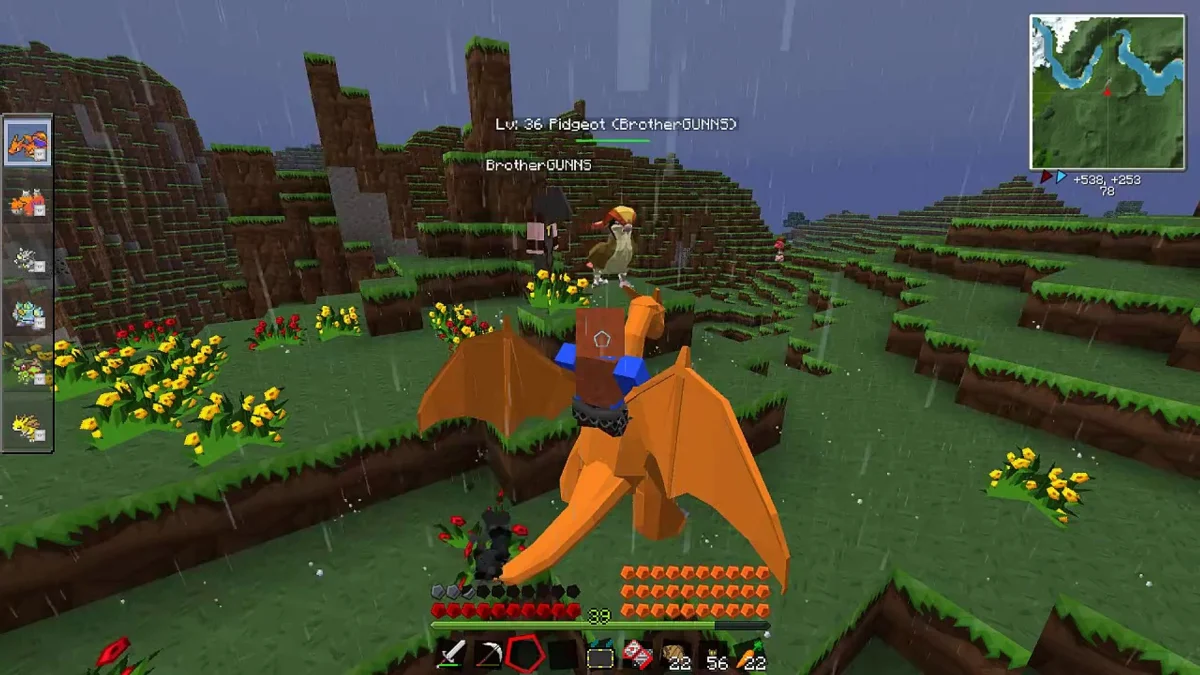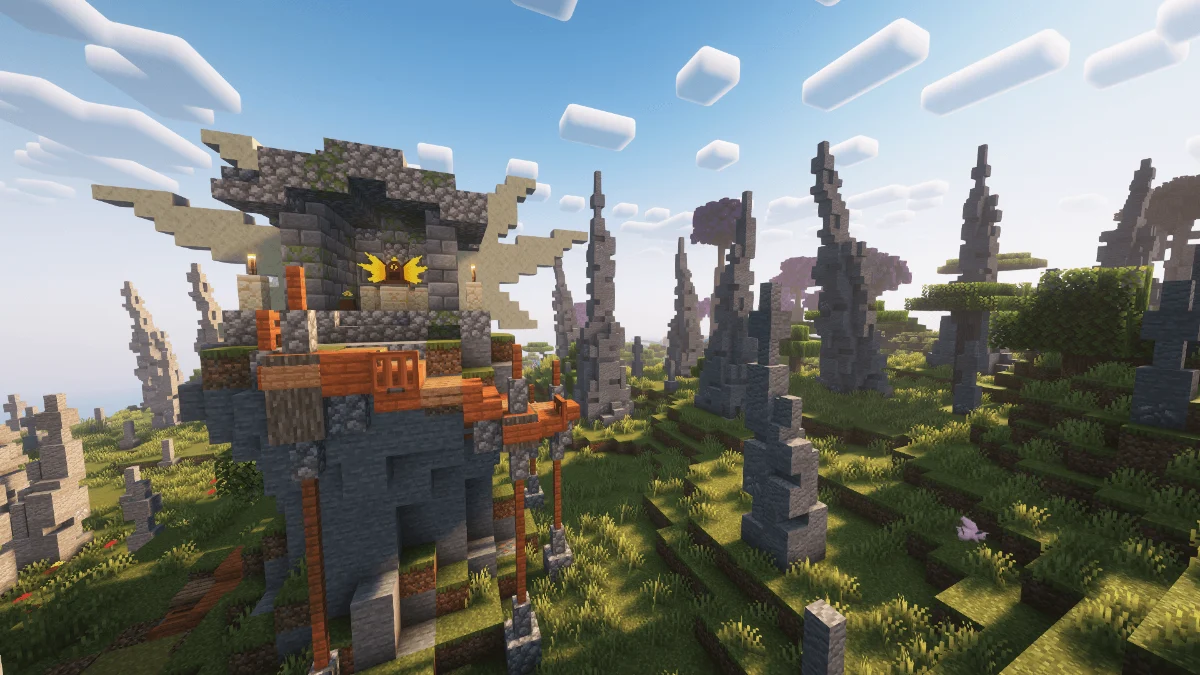
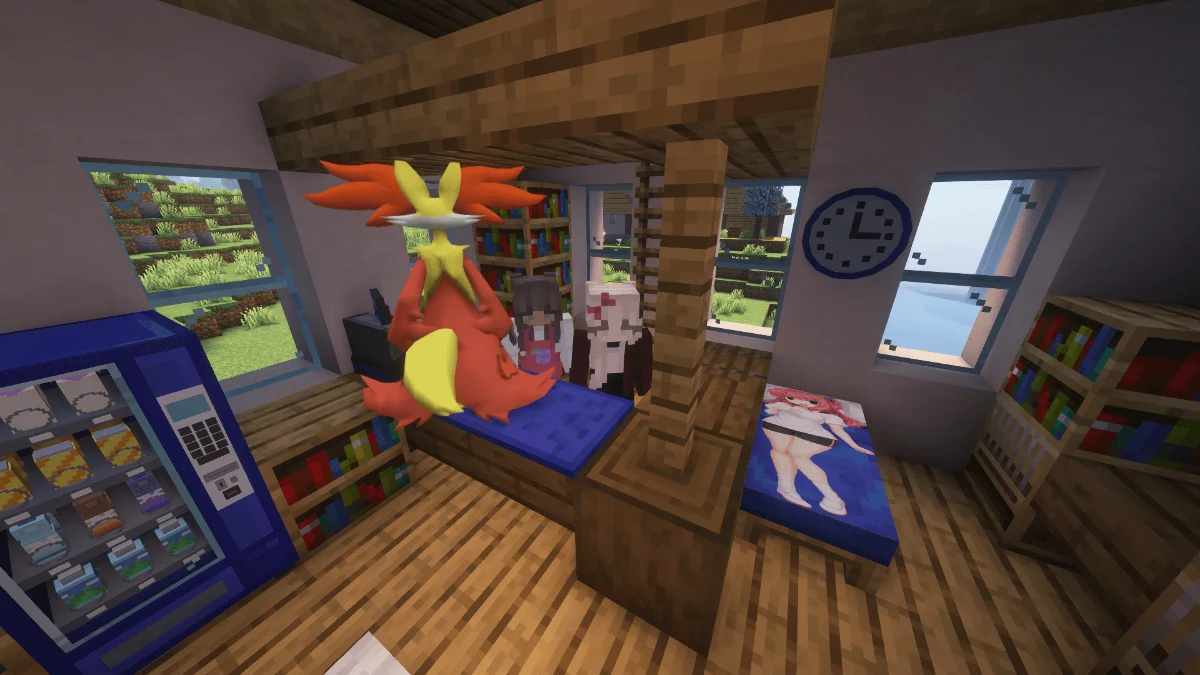
Java Pixelmon community modpack scene; additional content may differ from a basic installation. Image: Kesselot, Pixelmon Jenny.
Searches for Pixelmon Forge are some of the most common around the mod, and for good reason: Pixelmon has always been a Forge-family mod, and picking the wrong loader is the number one reason it fails to launch. In recent versions the story changed slightly, because the current Pixelmon line moved to NeoForge. This guide clears up which loader goes with which version and how to set each one up.
What Forge actually does
Minecraft: Java Edition does not load mods by itself. A mod loader sits between the game and the mods, injects their code and gives them a shared set of tools (an API) to add blocks, items, entities and screens. Pixelmon uses that API heavily — it adds creatures, battle screens, crafting recipes, blocks such as healers and PCs, and its own networking for multiplayer. Without the loader none of that code runs.
For many years that loader was Minecraft Forge. In 2023 a large part of the Forge team split off to create NeoForge, a continuation of the same codebase. Newer Pixelmon releases are built for NeoForge, while older Pixelmon lines remain on classic Forge.
Which loader goes with which version
- Minecraft 1.21.1 — Pixelmon 9.4.2 release, runs on NeoForge, needs Java 21. The changelog lists a minimum NeoForge build; use that or newer.
- Minecraft 1.20.2 — Pixelmon 9.2 line on Forge, Java 17.
- Minecraft 1.16.5 — Pixelmon 9.1 line on Forge. Still popular with long-running servers and older modpacks.
- Minecraft 1.12.2 — legacy Pixelmon 8 line on Forge. Only worth it for joining an old server that still runs it.
Always trust the file page over any summary, including this one. Each upload on CurseForge states its exact Minecraft version and the loader it was built for.
Installing NeoForge for current Pixelmon
- Download the NeoForge installer for Minecraft 1.21.1 from the official NeoForge website. Choose a build at or above the minimum Pixelmon asks for.
- Make sure Java 21 is installed. Open a terminal and run
java -versionto check. - Run the installer, keep Install client selected and press OK. A new "NeoForge" profile appears in the Minecraft launcher.
- Launch that profile once, close the game, then drop the Pixelmon jar into the
modsfolder. - Raise memory to 6 GB in the profile's JVM arguments and launch again.
Installing classic Forge for older Pixelmon
The steps are almost identical: download the Forge installer for your chosen version (1.20.2 or 1.16.5), install the client, run once, add the matching Pixelmon jar and raise memory. The only real difference is Java: use Java 17 for 1.20.2 and Java 8 or 11 for 1.16.5 if the launcher doesn't handle it automatically.
Can Pixelmon run on Fabric?
No. Pixelmon is written against the Forge/NeoForge API and does not run on Fabric or Quilt. Compatibility layers that try to load Forge mods on Fabric are not designed for a mod of Pixelmon's size and will not give a stable game. If you prefer Fabric, you will need a different creature-collecting mod instead.
Forge mods that pair well with Pixelmon
Because Pixelmon is a Forge-family mod, it sits happily alongside many common quality-of-life mods built for the same version and loader — minimap mods, recipe viewers, performance mods and inventory sorters are popular choices. Add them one at a time, test, and keep a note of what you added so you can roll back if a crash appears.
Loader-related errors and fixes
- "Mod pixelmon requires neoforge X or above" — update NeoForge to the version named in the message.
- "Unsupported class file major version" — your Java is too old. Install Java 21 and point the launcher at it.
- Game opens to vanilla with no Pixelmon — you launched the wrong profile, or the jar sits in a different instance's
modsfolder. - "Incompatible mod set" — another mod in the folder targets a different Minecraft version. Remove it.
Treat the loader as part of the installation
Pixelmon needs more than a Minecraft version number. The loader connects the mod to the game and supplies interfaces used during startup and play. Forge and NeoForge share history, but they are separate loader projects with their own releases. Their names should not be treated as interchangeable instructions. A Pixelmon file made for one loader family needs that family unless its publisher explicitly states otherwise.
For the Pixelmon 9.4.2 download discussed here, begin with Minecraft 1.21.1 and the NeoForge version required by the publisher. Older Pixelmon branches have different combinations. When a tutorial mentions Forge, check which Minecraft branch it describes before following its steps. A perfectly accurate instruction for an older profile can still be wrong for the profile you are preparing today.
Keep Minecraft, loader and Java versions together
Think of a working profile as a small set of related choices. Minecraft provides the game, NeoForge or Forge provides the loader, Pixelmon provides the mod, and Java runs the application. Changing one part may require changes elsewhere. Java 21 belongs with the Minecraft 1.21.1 setup described in this article, while older branches may have different runtime requirements.
Installing Java on the computer does not prove that a launcher uses it. Many launchers select a runtime for each instance. Open the selected profile’s settings and inspect the runtime path or managed Java setting. If startup reports an unsupported class version, check that selection first. Changing random memory arguments will not make an unsuitable Java runtime understand code compiled for a newer one.
Use separate profiles for separate Pixelmon branches
A clean profile is a practical way to prevent version confusion. Name it with enough detail to recognise its purpose, such as Pixelmon 1.21.1 NeoForge. Keep an older server profile separate rather than placing files for both branches into one mods directory. This also makes backups and troubleshooting easier because each profile has a clear set of components.
After creating a profile, launch the loader without extra mods and confirm that Minecraft opens. Then close it and add the matching Pixelmon file. If both stages work independently, you have established a useful baseline. If the loader itself does not open, solve that problem before adding Pixelmon. Otherwise, a base installation issue can be mistaken for a fault in the mod.
Read loader errors as specific instructions
Loader messages often identify the problem more precisely than a generic crash screen. A message about a missing dependency can name a required component or minimum version. A message about the wrong loader indicates that the mod file belongs to another installation family. A duplicate mod warning usually means that more than one copy has been left in the active directory.
Read these messages before replacing files. Record the exact mod name and required version, then compare them with the profile. If you seek help, include the Minecraft version, loader version, Pixelmon filename and the relevant log excerpt. A screenshot showing only an exit code leaves out much of the information needed to distinguish a loader mismatch from a graphics or memory problem.
Add compatible mods with a repeatable method
A matching loader and Minecraft version are necessary checks when adding another mod, but they do not guarantee that every feature will cooperate. Two mods can affect the same screen, rendering process, world generation or creature behaviour. Additions that change these systems deserve testing even if a launcher labels them compatible.
Start with Pixelmon alone and keep a copy of that working configuration. Add one extra mod, launch a disposable world and test the feature you wanted. Check that catching, battles, saving and joining your intended server still work. If a new issue appears, remove the latest addition and repeat the same action. This comparison gives you stronger evidence than replacing the entire installation at once.
Match the server rather than guessing
Multiplayer adds another compatibility boundary. A server may specify a particular Pixelmon release, a minimum loader version and additional required mods. Ask for that list rather than assuming the newest client will connect. Some client-only tools may be optional, while shared gameplay changes can require agreement between both sides.
When the connection fails, save the full message. A mod mismatch, whitelist rejection, unavailable server and incorrect address are different problems. Confirm that you can launch a local world before investigating the network. If the server has just updated, duplicate the existing profile and prepare the new combination separately. Keep the previous working copy until you know which setup the server now accepts.
Plan updates as a complete profile change
Before updating a loader, read the Pixelmon release notes and check the required combination. Newer loader builds may resolve problems, but an update should still have a purpose. Keep a backup of the profile and test the change on a copied world. Include configuration and required sidemods in that review, since they can carry assumptions about the earlier release.
Once a tested setup works, record the versions together. This simple record makes future support requests clearer and helps friends reproduce the same installation. The useful question is not merely whether Forge or NeoForge is installed somewhere on the computer. It is whether the selected Minecraft profile launches the correct loader, runtime and Pixelmon file as one coherent installation.
Pixelmon FAQs
Is NeoForge the same as Forge?
It is a continuation of the same codebase maintained by most of the former Forge team. For Pixelmon players the practical difference is simply which installer you download for which version.
Can I use Forge for Pixelmon on 1.21.1?
Current 1.21.1 Pixelmon builds are made for NeoForge. Use NeoForge for that version.
Do server and client need the same loader?
Yes. Both sides need the same Minecraft version, the same loader family and the same Pixelmon version.
Conclusion
The Pixelmon Forge question has a short answer: use NeoForge for the current 1.21.1 builds and classic Forge for the 1.20.2 and 1.16.5 lines, always with the Java version that matches. Line those up and the loader stops being a problem.